Extraneous Cognitive Load
“How to move a project to a folder in canva: you see this third icon on the top left, you click this and press this folder looking icon and click three dots, and press folder one here, and you’re done.”
Wow, I wonder if that description is very helpful or easy to understand to perform what it’s asking to do. What about we try this differently?
How to move a project in Canva:
- Once you log into Canva, select “Projects” on the left under “Magic Studio”
- Click on the three dot icon on the top right of the project you want to move.
- Then select the “Move to folder”, and ta-da! You’re done!
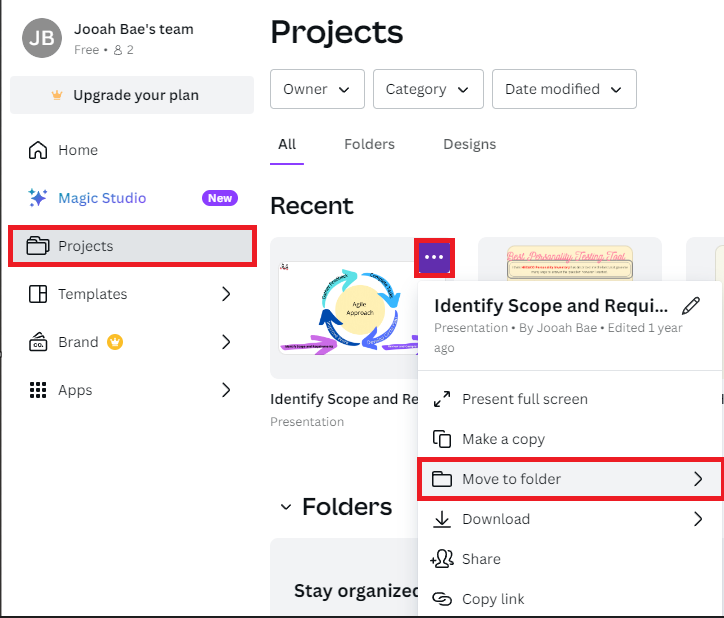
Only two principles of extraneous cognitive load were added (Signaling principle, Contiguity principle) to the plain instruction and things are looking a lot easier to learn.
What’s on my mind?
While I was screencasting with Zoom on Canva, I was trying to keep the principle of coherence from extraneous cognitive load in my mind. I get sidetracked quite often, and since the purpose of the screencast is to inform and provide information/instruction on using media, I tried to focus on staying on track. To provide better learning results to people, it is suggested to eliminate all unnecessary information and stay focused on the topic. However, presenting is not one of my biggest strengths, so my screencast video might have a rough time trying to keep this principle in mind.
Who needs this screencast?
Canva is an online free design tool that can create graphics such as social media posts, presentations, posters, infographics, and more. To this day, this site is loved by many students and organizations as it creates great infographics easily at no cost (and more magical features to come once you upgrade to different plans!).
I created this screencast of Canva in hopes that this can help those people who will be using Canva for the first time. I will be going through how to create a simple infographic using multiple shapes, colours, elements, pictures, and other tools.
Hi Jooah!
Great job on your module 1 blog post. I really enjoyed the intro where you wrote your thought process in your own voice. I felt it made the blog post very personable, something I feel I need to work on. In your “What’s on your mind” section, I personally related to not having good presentation skills. I’m hoping we can work on it together in this class!
Even though you said that your presentation skills aren’t great, I thought that your screencast was very well done! Like I mentioned about your blog earlier, I really enjoy the conversational and more personal touch you’ve added. It makes it easier to learn.
If I were to critique it, I would wish for the screencast to be a bit more concise. I know that you covered a large amount of information in your Canva introduction. Maybe you can narrow the scope instead of trying to introduce everything at once. This way, the content will be more digestible for learners.
I’m looking forward to reading your next blog post!